User Guide
Welcome to the NameJet, the leader in Aftermarket Domain Names.
Browse and search without an account. Sign in when you're ready to place a backorder, bid, or buy.
- Phone: 1-877-352-5630
- Support: SnapNames.com/support
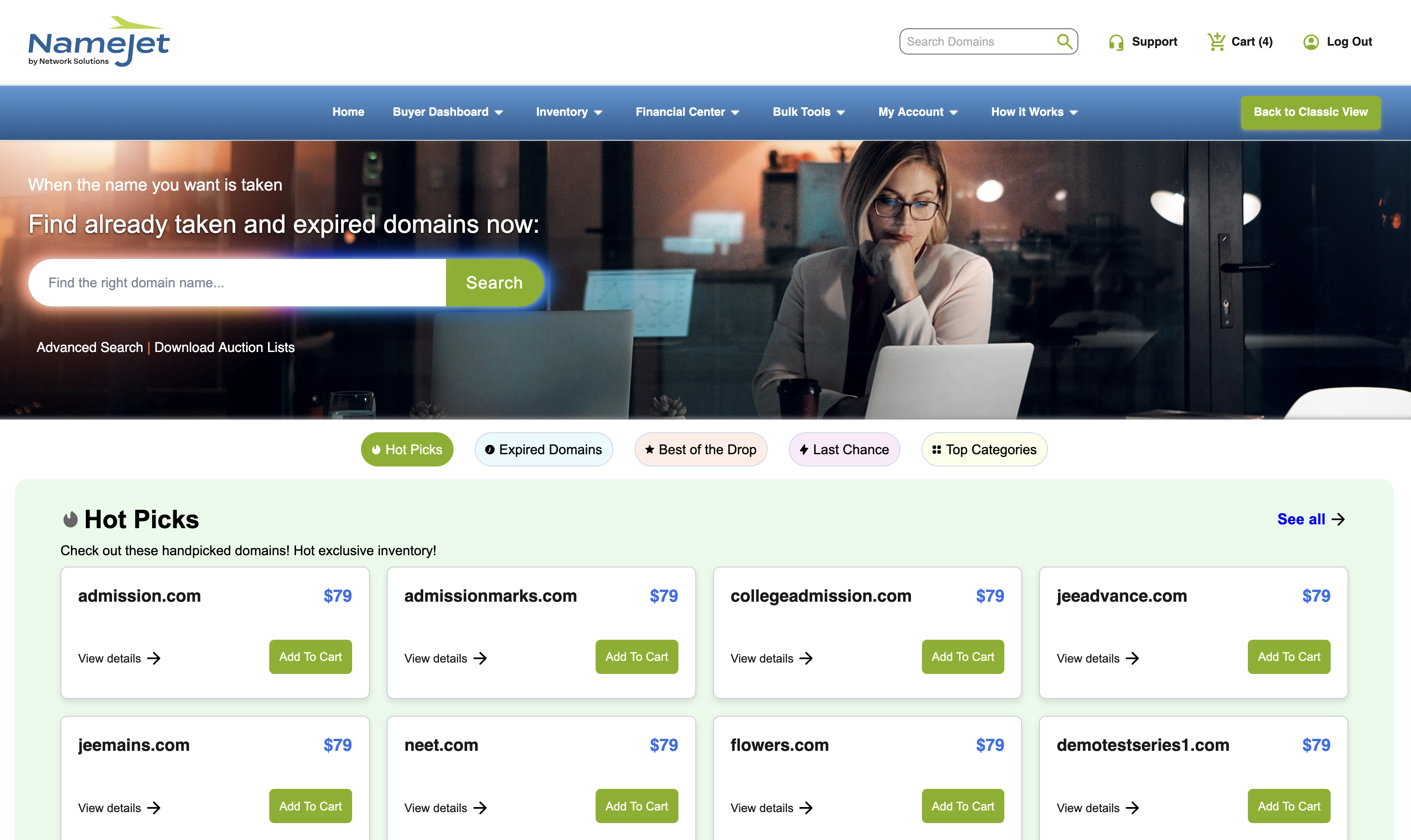
Header search — enter a domain from any page
To delete a saved search, load it first, click the Load icon again, and then select Delete.
To receive email notifications when new domain names match your saved criteria, see Saved Search Email Alerts.
Header search — enter a domain from any page
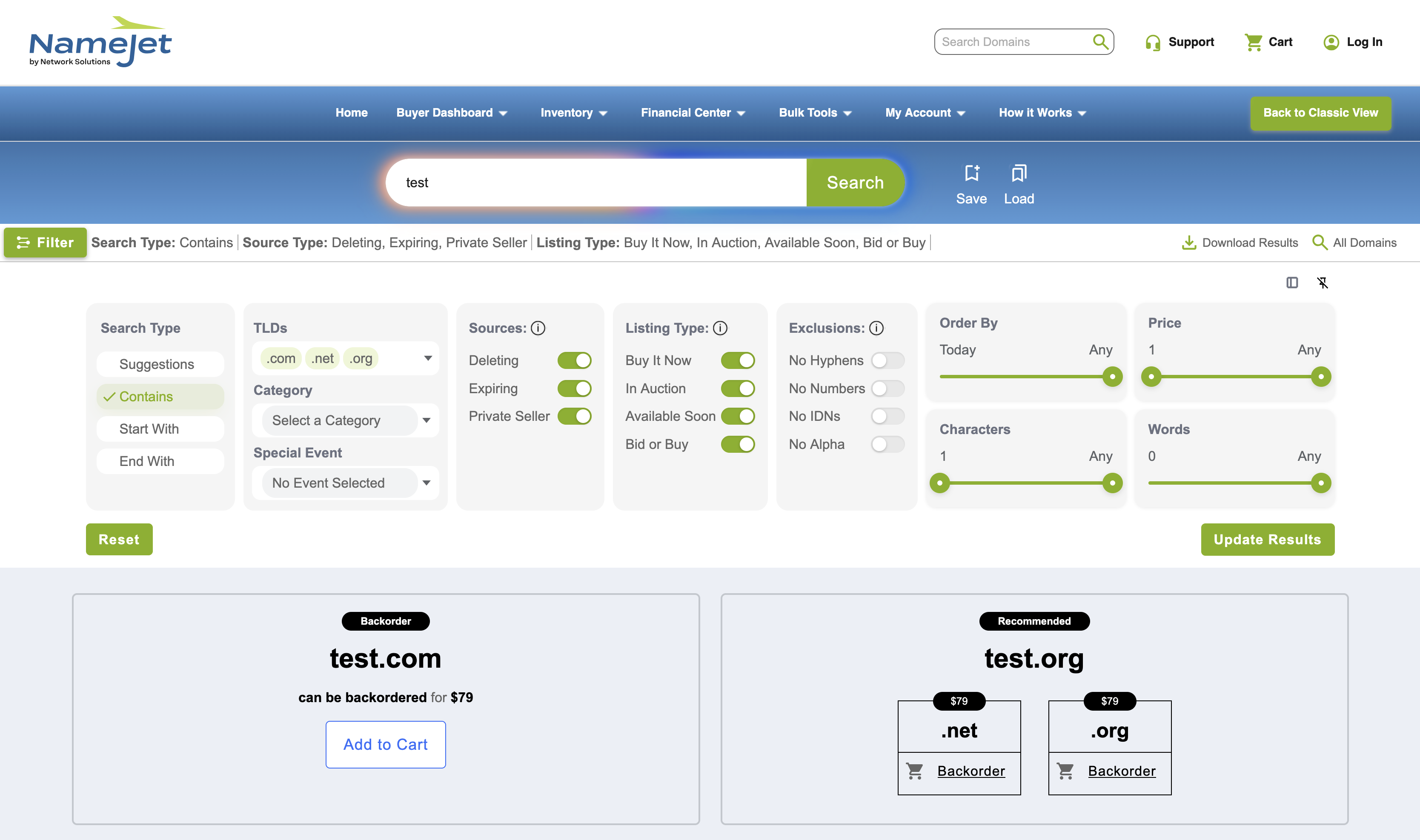
Advanced Search results — use filters to narrow inventorys
| Filter | What it does |
|---|---|
| Search Type | Match by Suggestions, Contains, Start With, or End With. |
| TLDs | Limit results to one or more extensions (.com, .net, .org, etc.). |
| Category | Browse by theme — Business, Technology, Geo, and more. |
| Sources | Deleting (pending delete), Expiring (partner registrar drops), or Private Sellers. |
| Listing Type | Buy It Now, In Auction, Available Soon, or Bid or Buy. |
| Exclusions | Hide IDNs (internationalized names starting with xn--) and other types you don’t want. |
| Order By | Show names dropping or ending today, this week, or any future date. |
| Price | Set minimum and maximum bid or buy-now range. |
| Characters / Words | Limit name length or word count. |
- Combine filters to target very specific inventory (e.g:
.com+ Deleting + under $500). - Filters apply to the current storefront. Start from Basic Search or Advanced Search.
- To reuse criteria later, save your search from the results page (see Saved Search Email Alerts in the Power User section).
Advanced Search filter panel — set criteria, then click Update Results
Domains acquired through Priority Partner registrars after expiration and the 30–45 day Grace Period. Depending on the registrar relationship, domains may be offered before the Renewal Grace Period ends.
After the Redemption Grace Period ends, a domain enters Pending Delete while the registry processes the deletion. This period typically lasts about six days before the domain becomes publicly available.
Domains available exclusively through this platform and not offered on other marketplaces.
Fixed-price domains that can be purchased immediately without participating in an auction.
To review or modify items before checkout, see Shopping Cart.
To find domains entering the deletion cycle, see Inventory Types and Using The Filters.
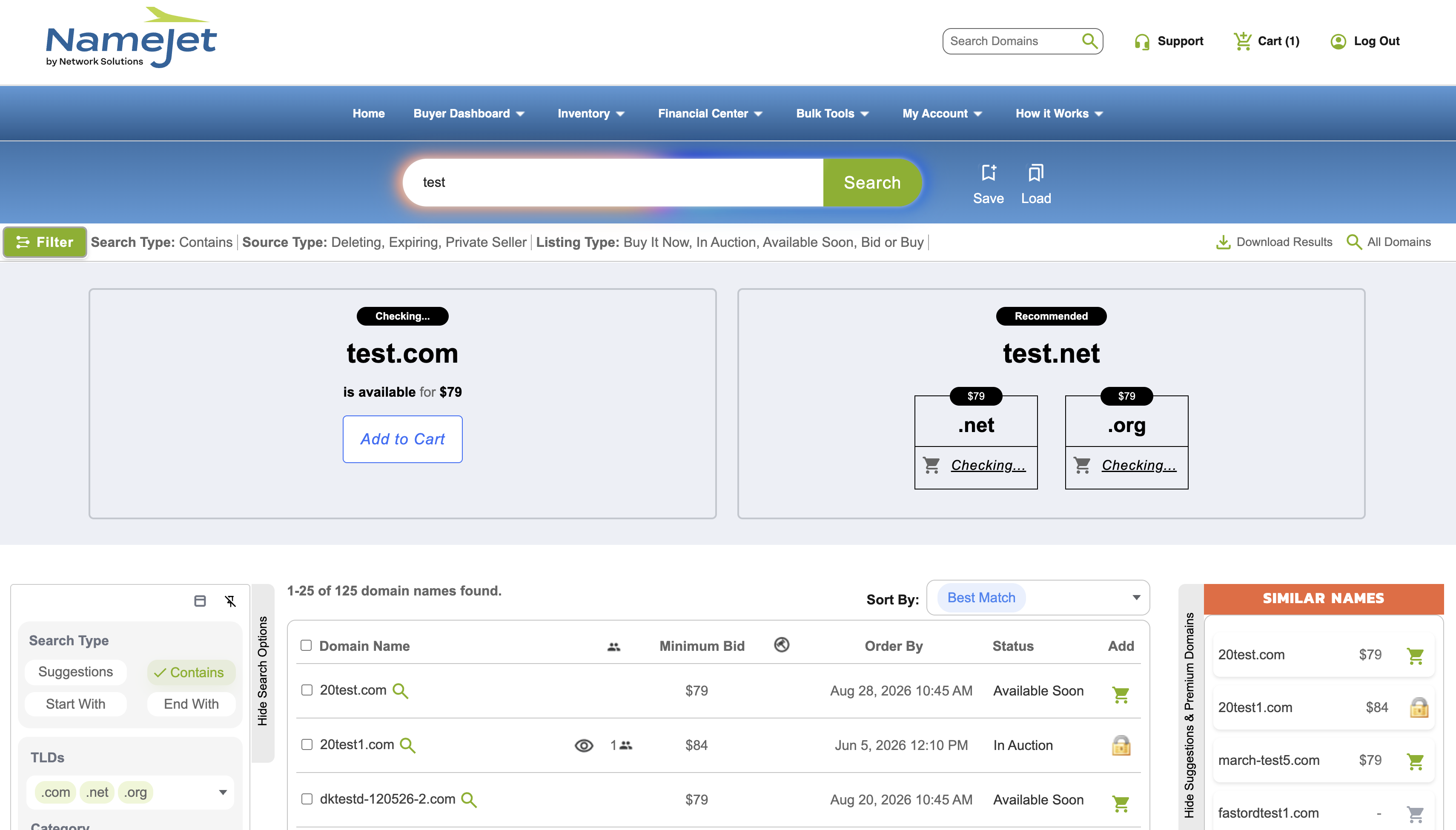
Advanced Search — filter by TLD, category, source, listing type, and more to find backorder targets
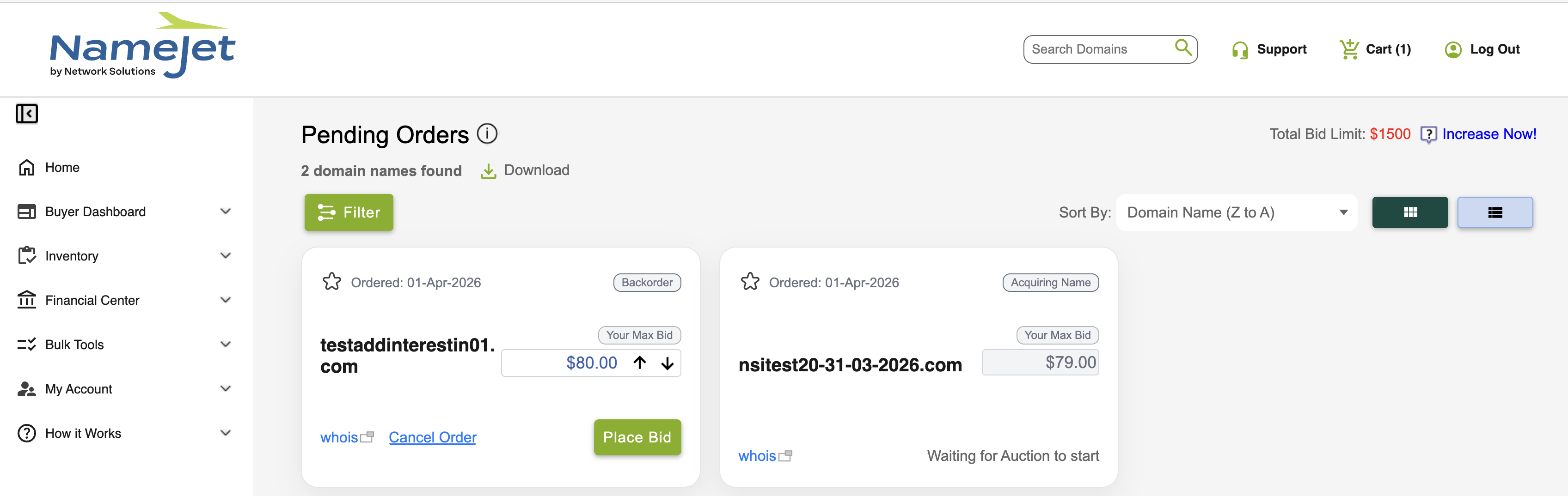
Pending Orders — track all active backorders before acquisition
Some domains are also offered as Buy It Now listings, allowing you to purchase them immediately at a fixed price without participating in an auction.
Your first bid may be placed from search results, a domain details page, or the Shopping Cart. Once an auction is active, you can manage it from My Auctions.
Buyer Dashboard → Pending Orders
Pending Orders displays your active backorders and pre-auction interests. Domains remain here until they are acquired, released, or move into an auction.
Use this page to:
- Monitor active backorders
- View acquisition status
- Track domains waiting to enter auction
Buyer Dashboard → My Auctions
My Auctions displays all auctions you are currently participating in. The page refreshes automatically so you can monitor activity and adjust bids in real time.
| Action | Description |
|---|---|
| Adjust bids | Increase or decrease your maximum bid on an active auction. |
| Place bids | Submit bids directly from the auction page. |
| Export list | Download a CSV file of your auction participation. |
| Filter by end date | View auctions ending today or within a selected period. |
| Switch views | Toggle between List View and Tile View to display auctions the way you prefer. |
Pending Orders — track active backorders and pre-auction interests
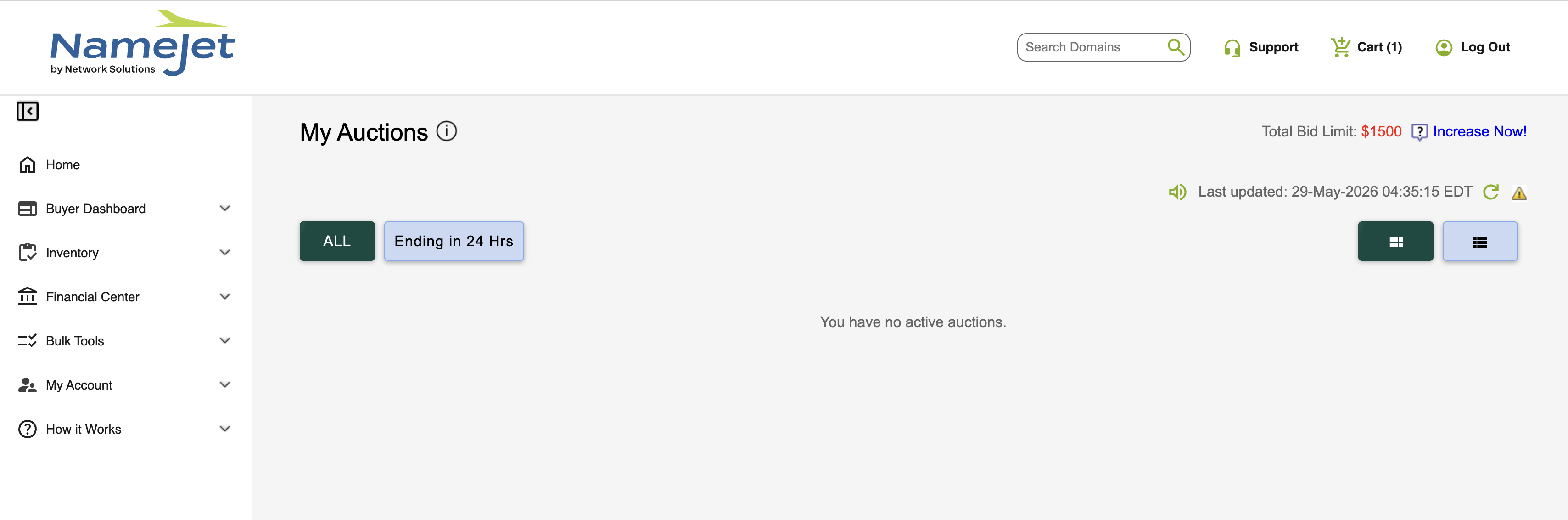
My Auctions — manage live bids, export lists, and filter auctions
| Action | What it offers |
|---|---|
| Review items | See every domain you've queued, its listing type, and your bid or buy-now amount. |
| Adjust bids | Change your maximum bid before placing the order. |
| Remove | Remove individual domains from cart |
| Save For Later | Move names out of the active cart without losing them — reload them when you're ready. |
| Place Order | Submit all items as firm orders (see alert below). |
- Add domains: From search results, click Add to Cart, Backorder, or Bid. Or open a domain page and add from there.
- Open the cart: Click the cart icon in the header or next to any name you just added to cart.
- Review and edit: Confirm each domain, listing type (Bid vs. Buy Now), and bid amount.
- Check the Order Summary: Note Total Due Now (charged immediately for Buy Now items) versus Total Due Upon Fulfillment (bids/backorders charged only if you win).
- Click Place Order: Confirm the prompt. You'll see a confirmation page with the outcome for each domain.
- Track your orders: Active backorders → Pending Orders. Live auction bids → My Auctions.
Firm order: When you click Place Order, you are committing to purchase any domain you win at the price shown. Make sure your payment method is on file before checkout.
Unverified accounts have a total bid limit. To raise your limit, see Become a Verified Bidder in Power User.
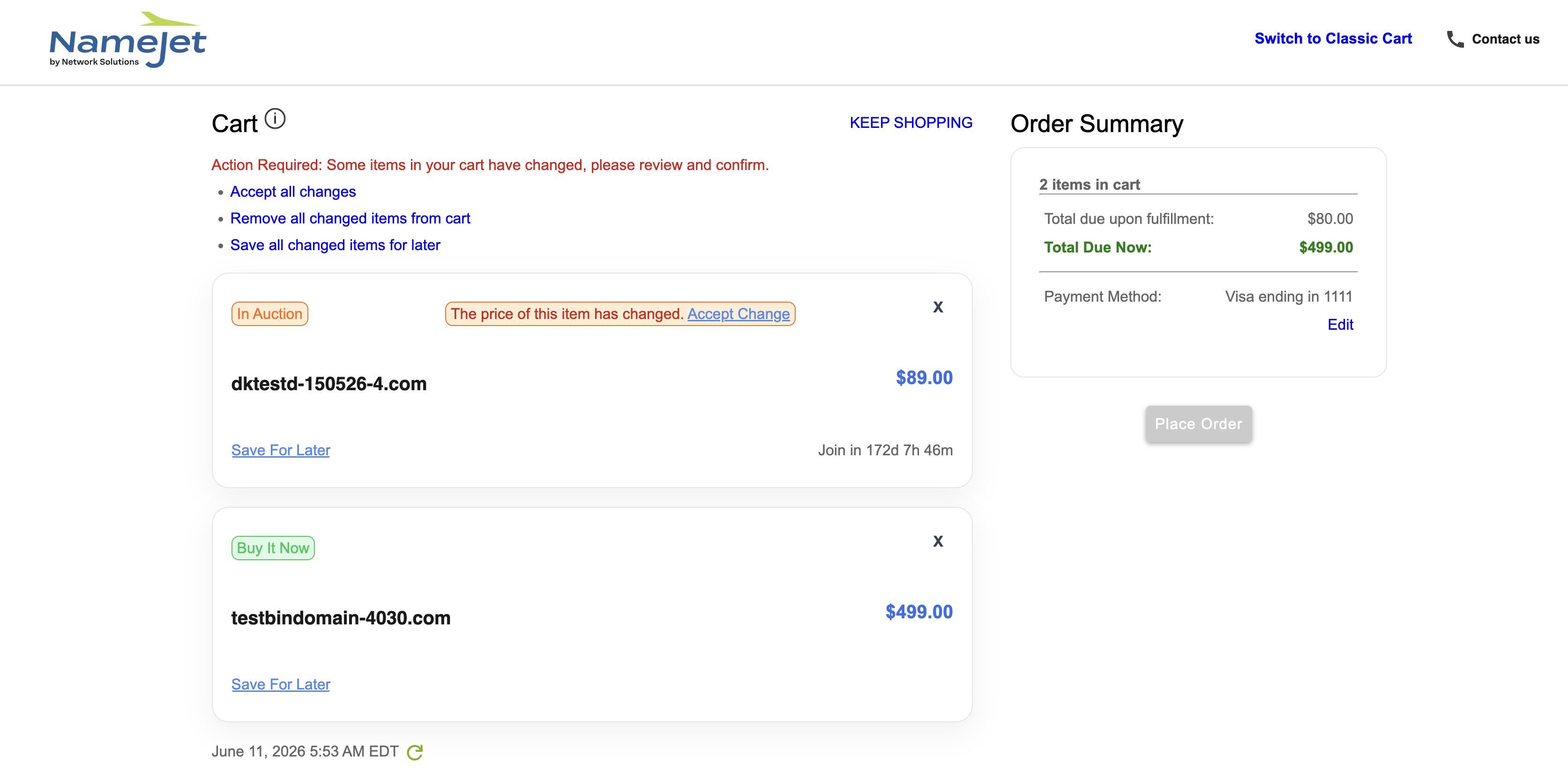
Shopping Cart — review items and adjust maximum bids before placing your order
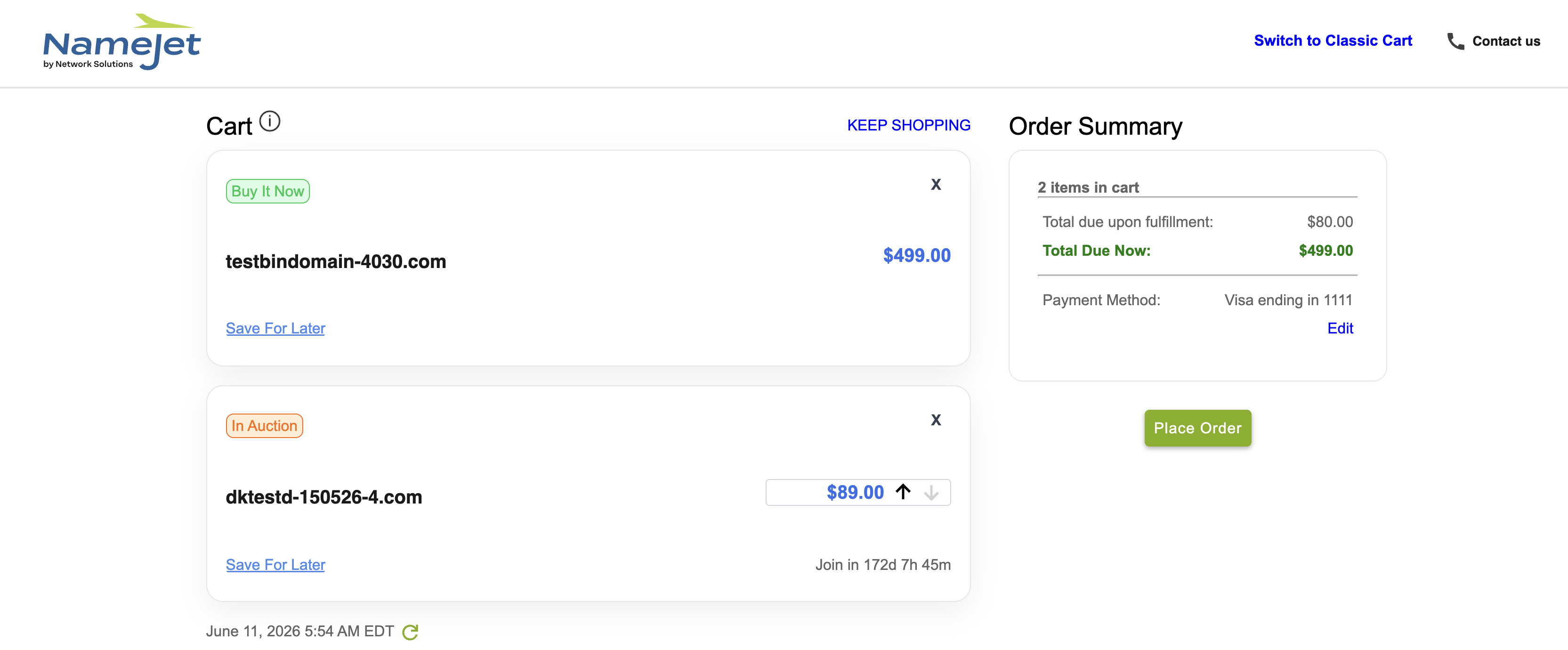
Order Summary — Total Due Now vs. total due upon fulfillment
- aFill in all required fields
- bAgree to the Terms of Service
- cComplete the CAPTCHA
- dClick Submit
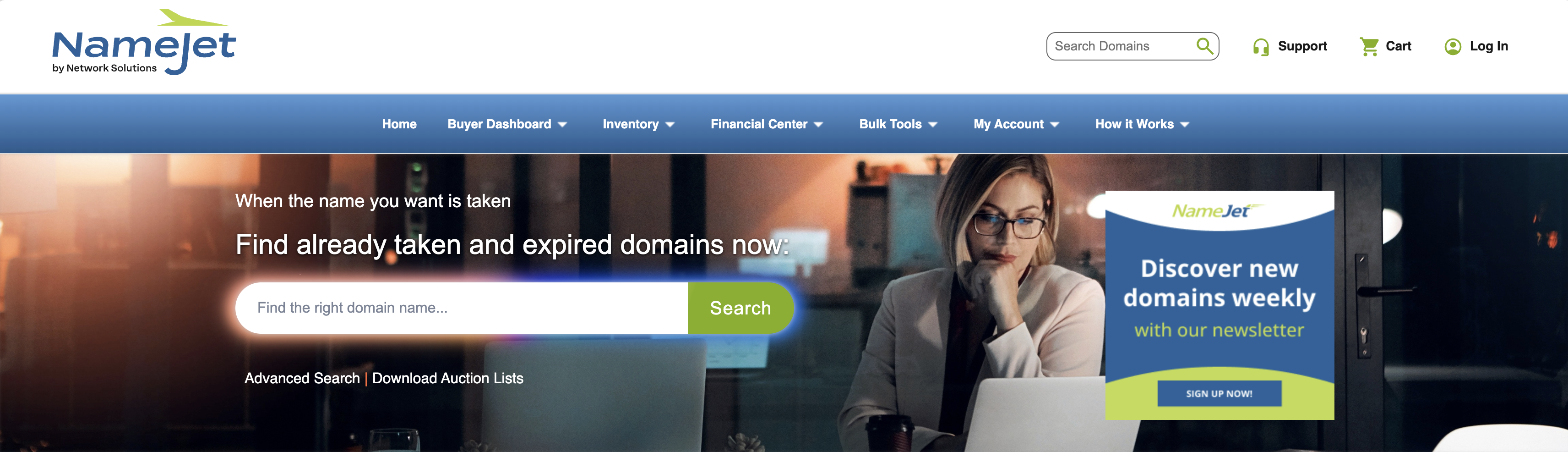
NameJet homepage — click "Sign In" in the top-right corner
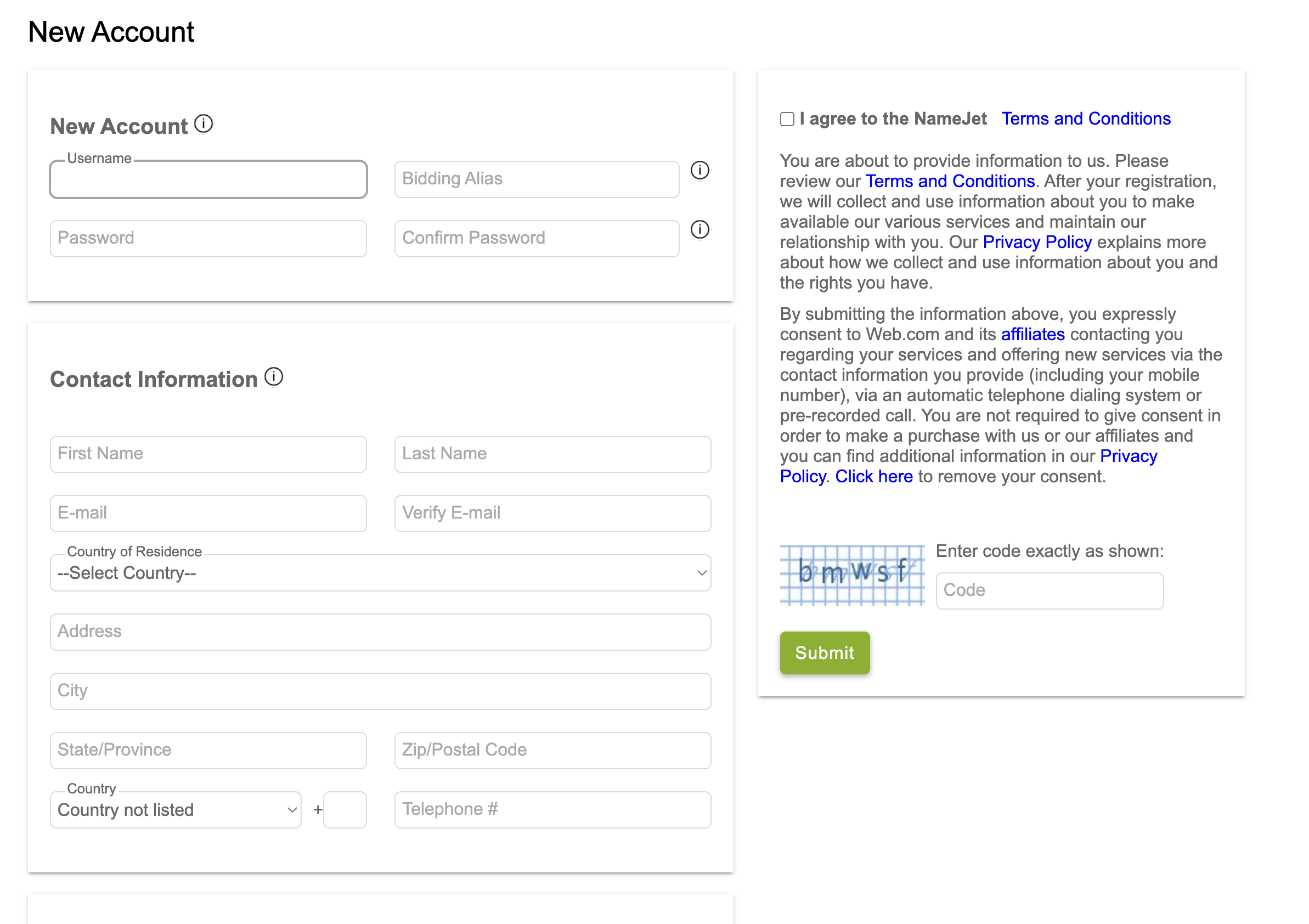
New Account form — fill in Account Preferences, Contact Information, and Billing Information
Set this up before your first purchase so won domains can be processed correctly.
After winning a domain, it transfers via the partner registrar. Your registrant (WHOIS) information must stay accurate at all times.
Go to Financial Center → Add Funds to deposit money into your account.
Available payment methods depend on the amount being funded.
| Amount | Available Payment Methods |
|---|---|
| Under $50,000 | Credit Card, PayPal, Domestic ACH, Domestic Wire, or International Wire |
| $50,000 or more | Domestic ACH, Domestic Wire, or International Wire only |
Go to Financial Center → Payment Center to:
- View outstanding balances
- Review payments due for completed auctions or purchases
- Make payments on active or suspended orders
- Review your account balance
For ACH or wire transfers, notify the payment team before initiating the transfer.
Wire instructions and account details are displayed within Add Funds.
Financial History provides a record of deposits, payments, and account activity.
You can switch between List View and Tile View when reviewing financial activity and transaction history.
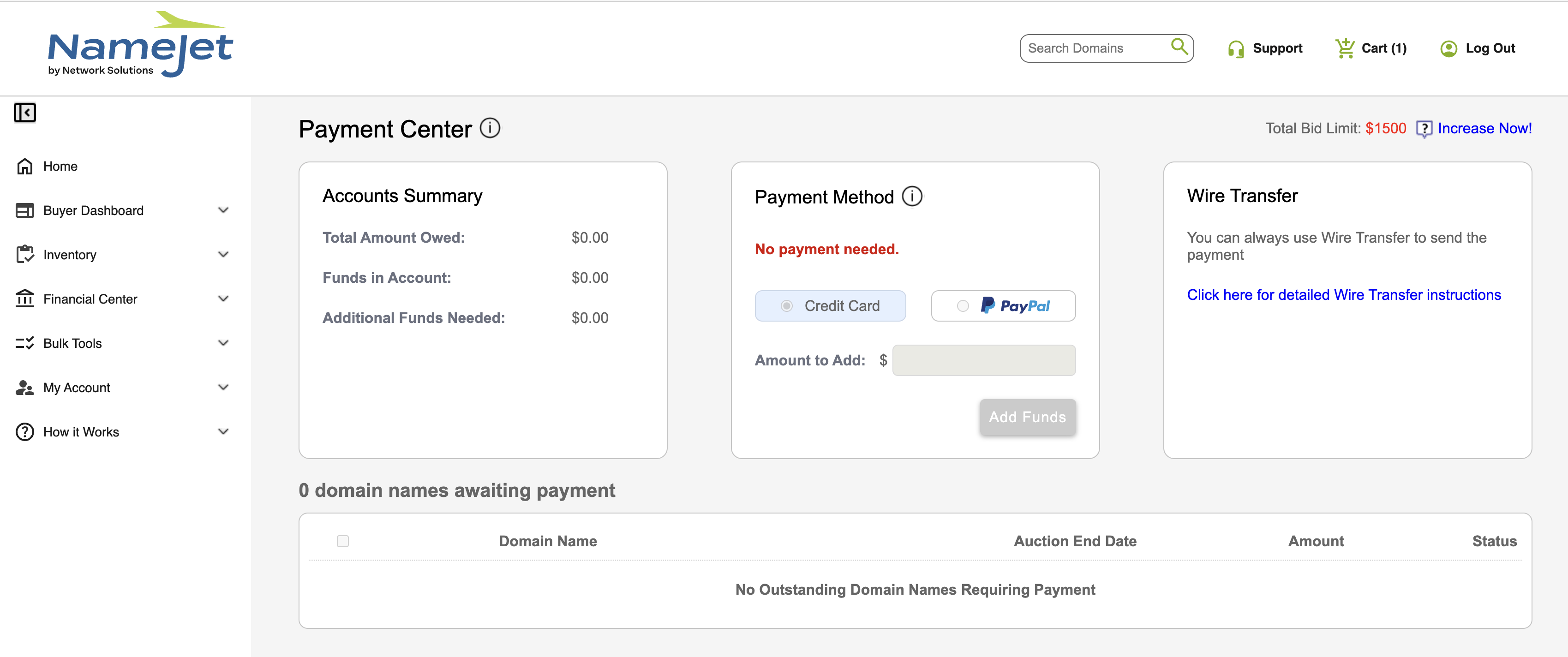
Payment Center — view outstanding balances and navigate to Add Funds
Add Funds — credit card / PayPal under $50K; wire transfer for larger amounts. Wire instructions shown.
| Results on page | Starting view |
|---|---|
| 6 or fewer | Tile View |
| 7 or more | List View |
Your choice is remembered on that browser. The next time you open the same page, you'll see the view you last selected — even if the result count changes.
| View | Best for |
|---|---|
| Tile View | Quick scanning of a small set; key details on each card |
| List View | Sorting, comparing many domains, bulk actions, export |
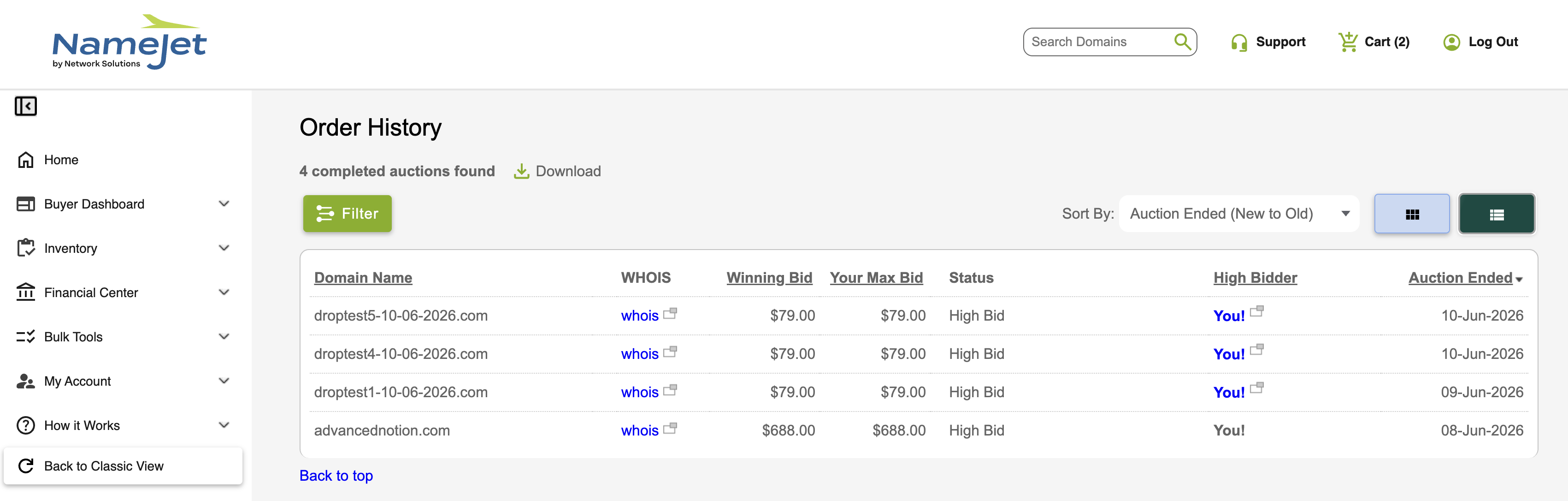
Tile and List toggle — your selection is remembered
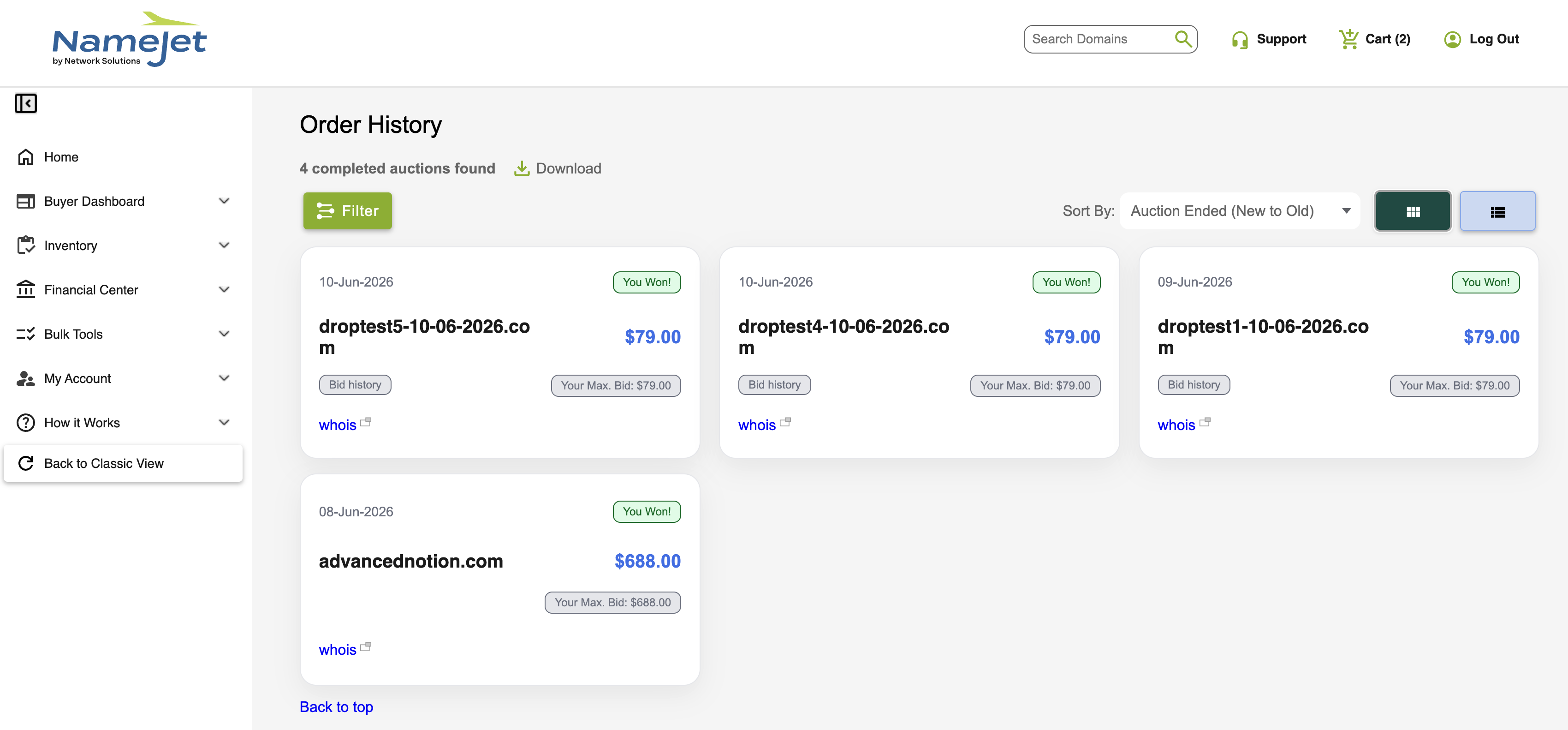
Tile View — card layout for smaller result sets
Go to Financial Center → Order History
Order History displays the outcome of your orders, including:
- Won auctions
- Lost auctions
- Cancelled orders
- Completed backorders
- Order amounts and dates
Use the date filter to view:
- Current Month
- Previous Month
- Last Year
- All History
- Custom date range
Go to Financial Center → Purchase History
Purchase History displays domains you successfully acquired, including:
- Completed registrations
- Domain transfers
- Purchase dates
- Purchase amounts
Order History and Purchase History support both List View and Tile View, allowing you to switch between compact and visual layouts.
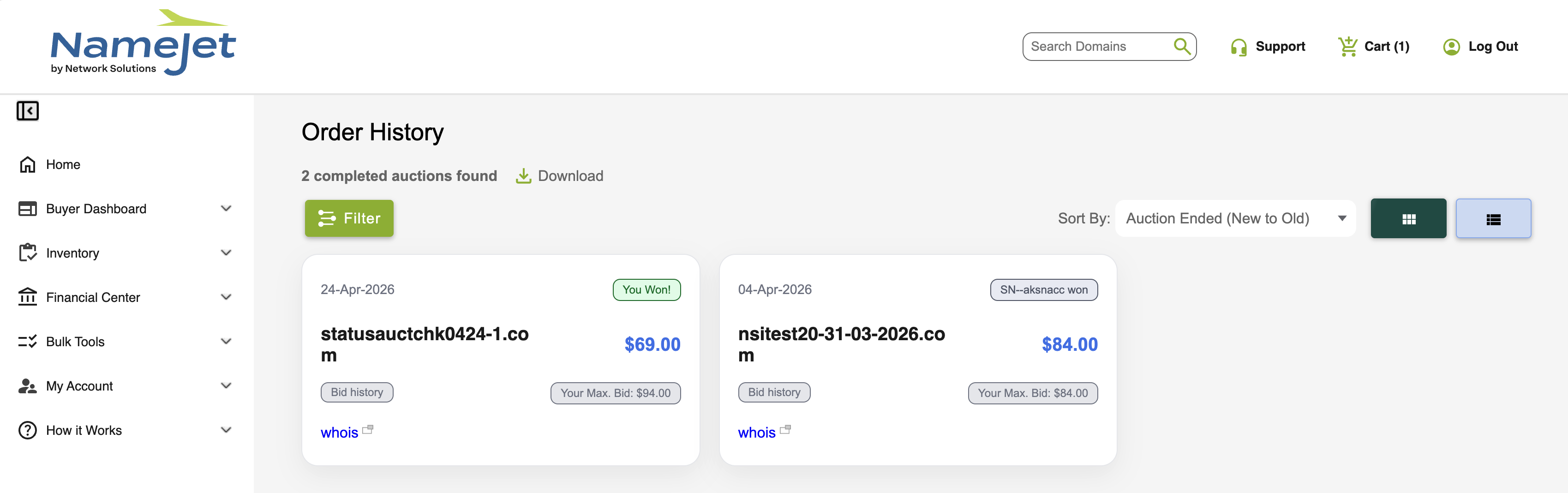
Order History — filter by date range to view your complete bid history
Verification is recommended for active buyers and domain investors who regularly participate in auctions or place multiple backorders.
- Limited backorder count
- Restricted auction participation
- Bid amount cap applies
- Basic account privileges
- Unlimited backorders
- Full auction access
- No bid cap
- Expanded purchasing privileges
Verification requirements and review times may vary. Keep your account information and payment details up to date to help expedite the process.
For select partner registrars, linking your account ensures won domains automatically fulfill to your registrar.

Linked Partner Registrar Accounts section in Account Information
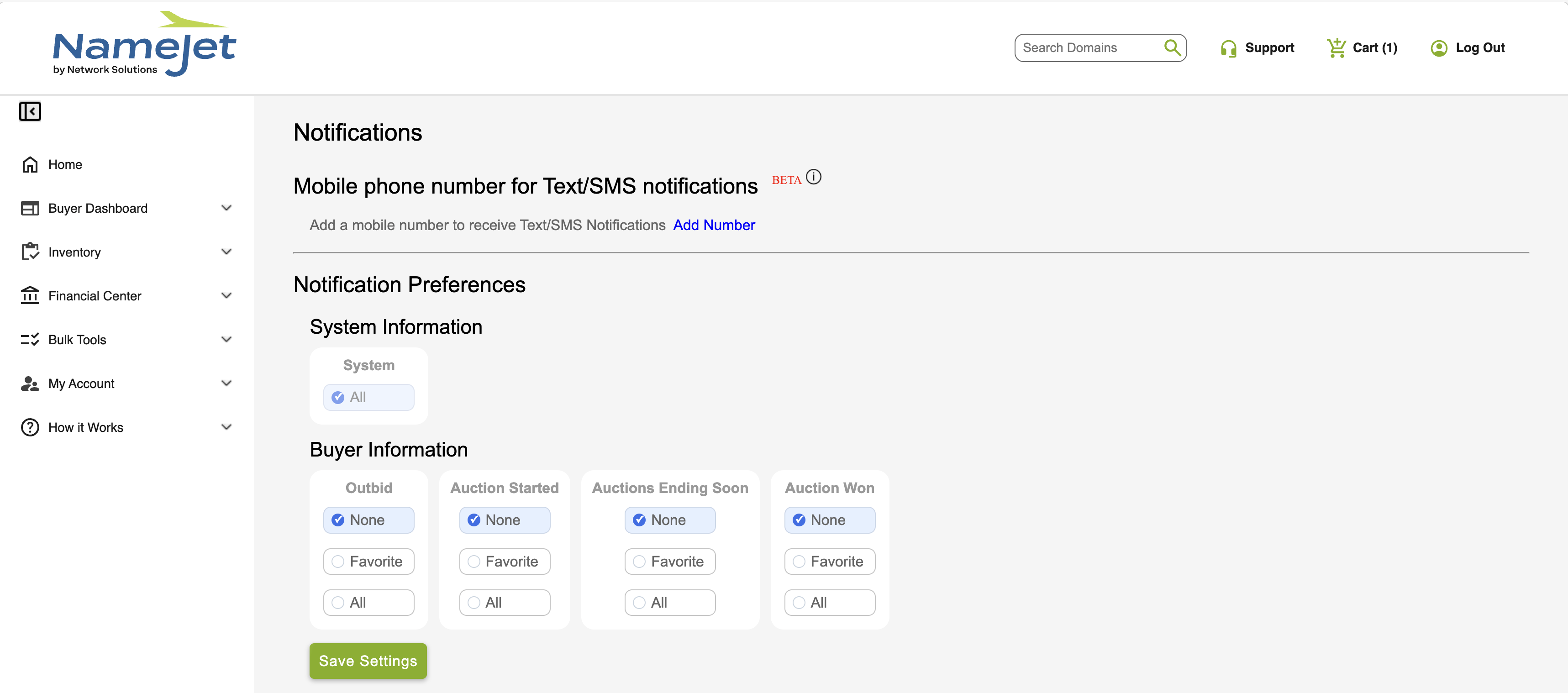
Notifications page — enter your US mobile number, complete verification, and select alert types
Expiring and deleting domains expected to enter auction shortly.
Domains currently in an active NameJet auction.
Expiring domains about to begin auctioning.
Entering auction within the next 5 days.
Expiring from top partner registrars within 5 days.
Hottest domains across finance, education, sports.
Domains for sale exclusively through Web.
Domains for sale from our premium partners.
Specific date · All domains · Next 5 days · Full or Light dataset
CSV — opens in Excel or any spreadsheet.
Compressed text — open in any text editor.
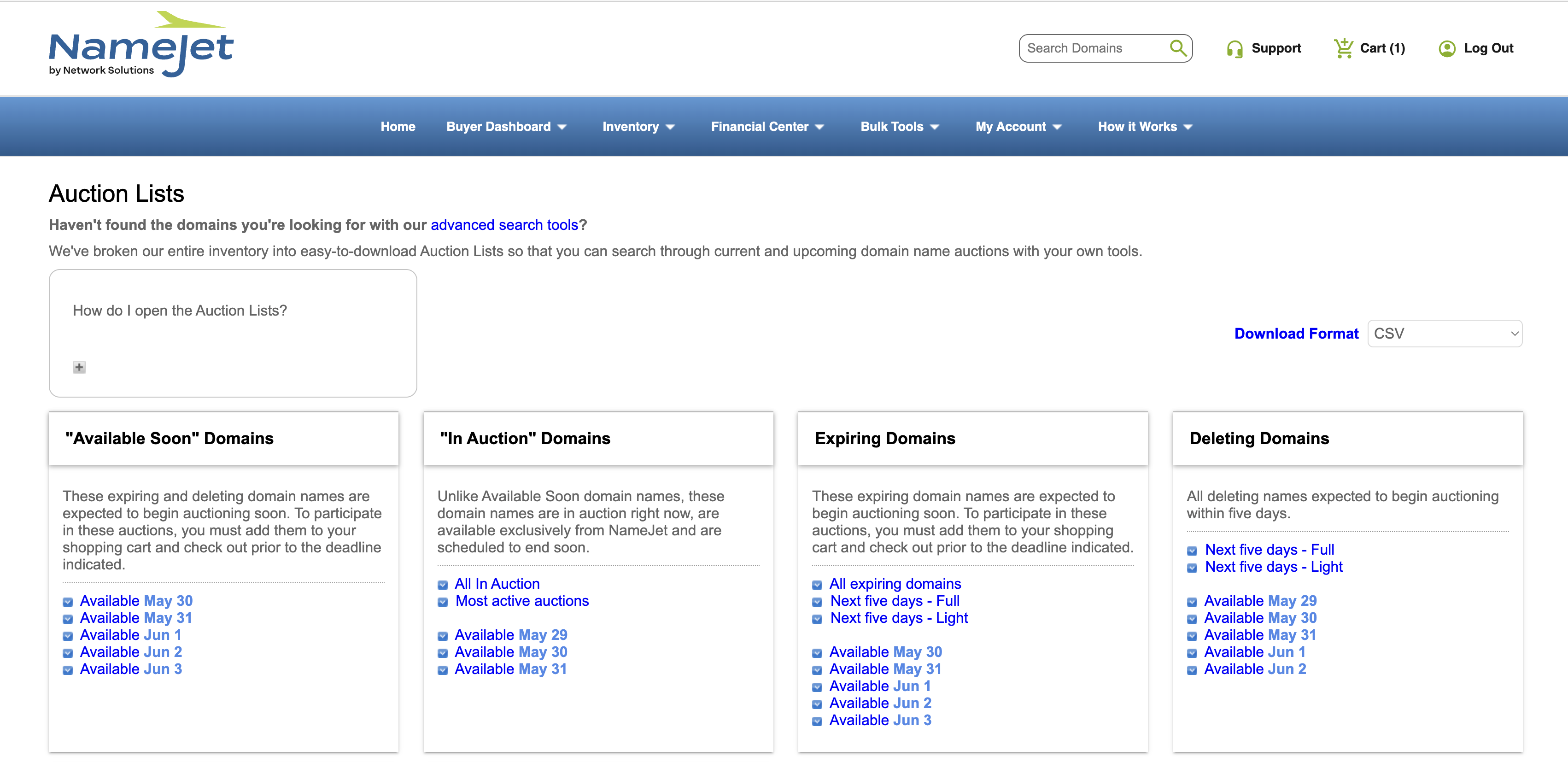
Auction Lists download page — choose list type, date scope, and format (CSV or compressed text)
| Steps | What happens |
|---|---|
| 1. You define criteria | Search terms + filters (TLD, source, listing type, price, etc.) narrow inventory to your target. |
| 2. You save the search | Name it and optionally check "Email me new results". |
| 3. We scan daily | NameJet runs your search against fresh inventory every day. |
| 4. You get new matches only | The email includes domains that newly match since the last run — not the full result set every time. |
| 5. Top 50 in your inbox | Up to 50 new names per saved search are included in each daily email. |
You can also unsubscribe from any saved search alert using the unique unsubscribe link in the saved-search email.
- Be specific with filters — combine Source (e.g., Deleting vs Expiring), Listing Type, TLD, and price range so daily emails surface only high-intent names.
- Use multiple saved searches — one per niche (e.g., .com finance under $500, geo names ending today) instead of one broad search.
- Act fast on email results — daily emails surface new matches; popular names move quickly. Use Add to Cart or bid from the links in the email or from search results.
- Pair with Download Lists + Bulk Tools — for large static lists; saved-search email is best for ongoing monitoring of changing inventory.
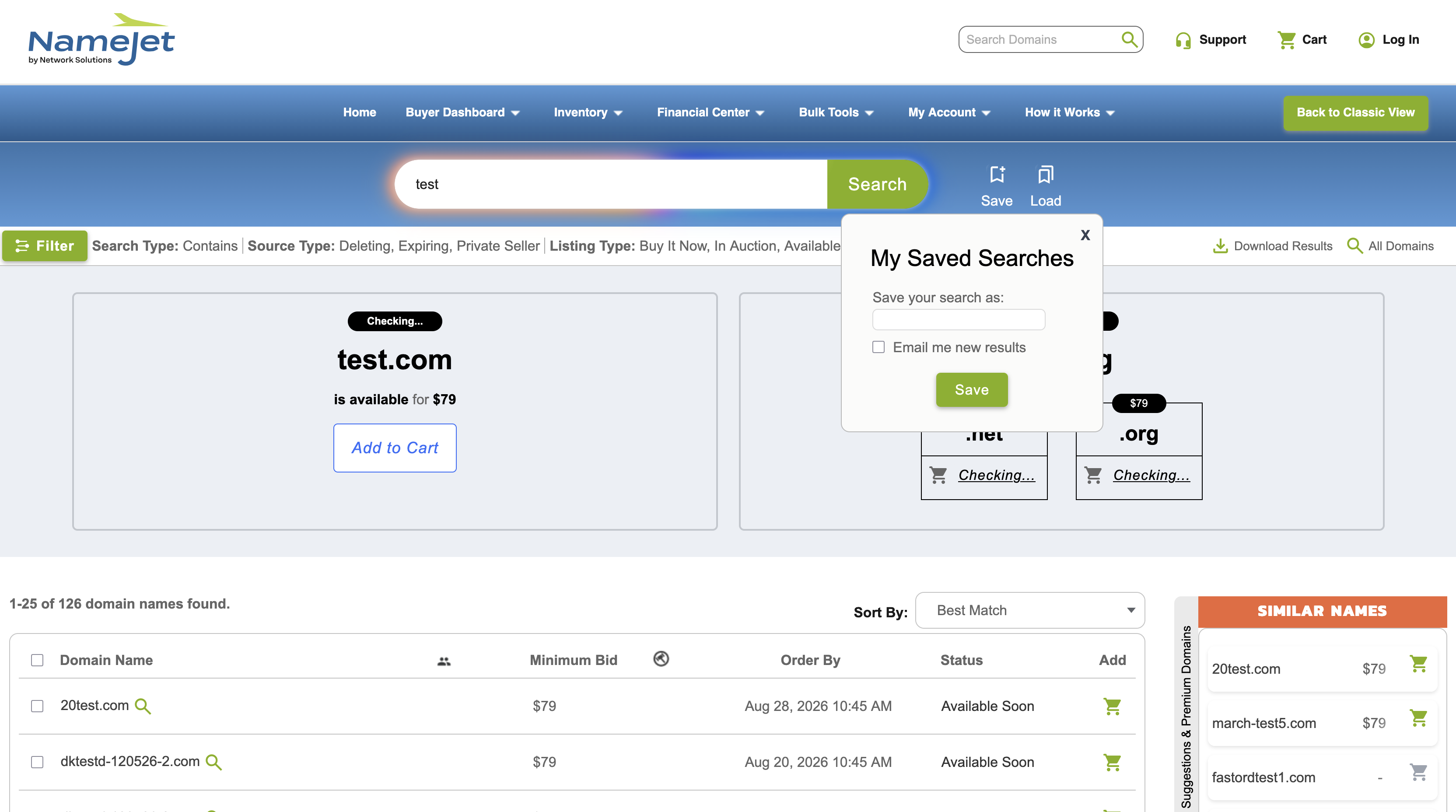
Save search dialog — name your search and check Email me new results
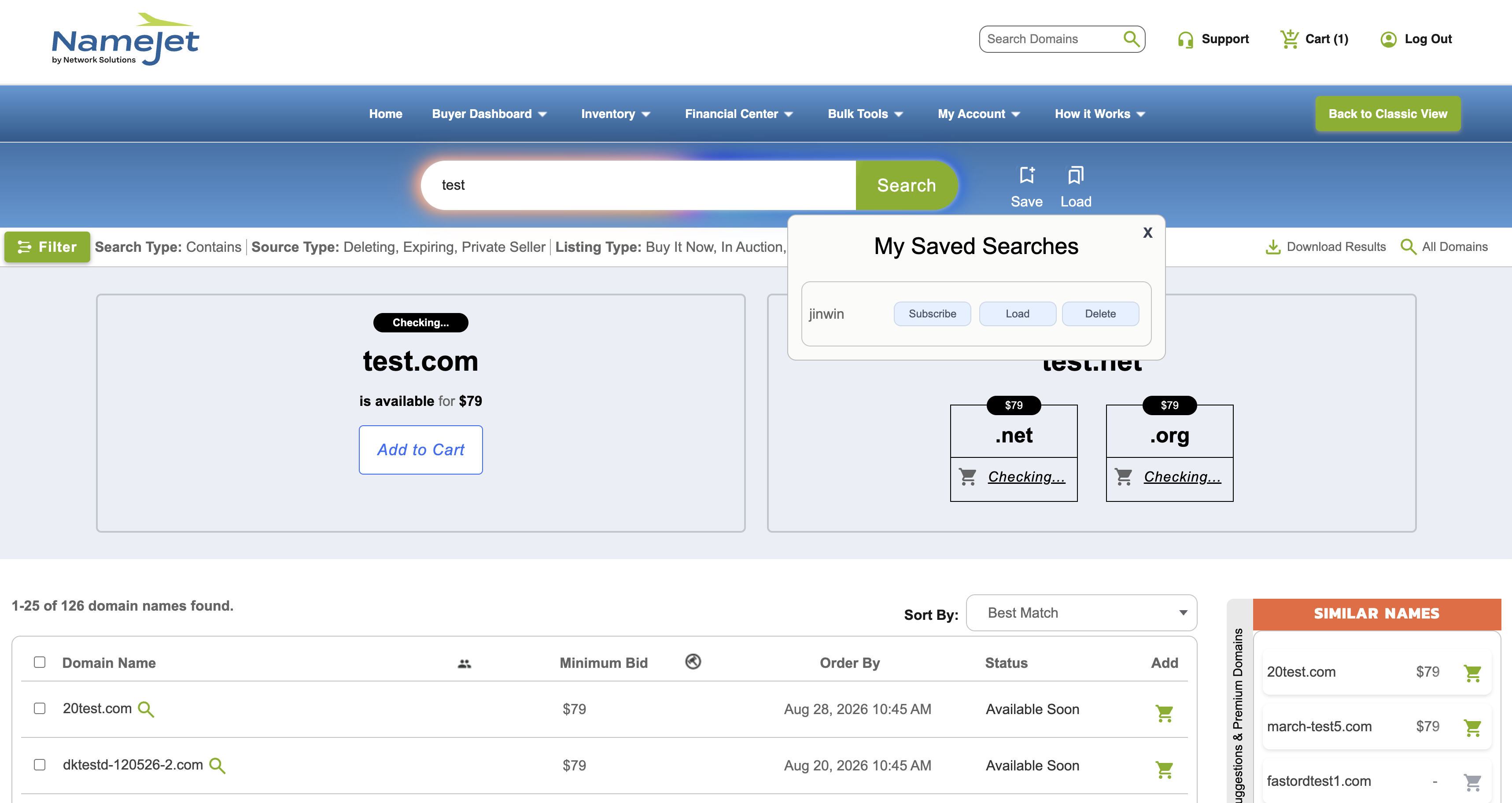
Load saved search — load, subscribe, or delete saved searches
All bulk tools are available under Bulk Tools in the navigation menu. Enter multiple domains separated by spaces, commas, or line breaks. Each submission supports up to 500 domains.
Domain1.com:100, Domain2.com:200Domain1.com:150Domain1.com:mark or Domain2.com:removeAfter submitting a bulk request:
- View active backorders in Pending Orders
- Manage live bids in My Auctions
- Review completed activity in Order History
9:00am to 6:00pm US Eastern Standard Time
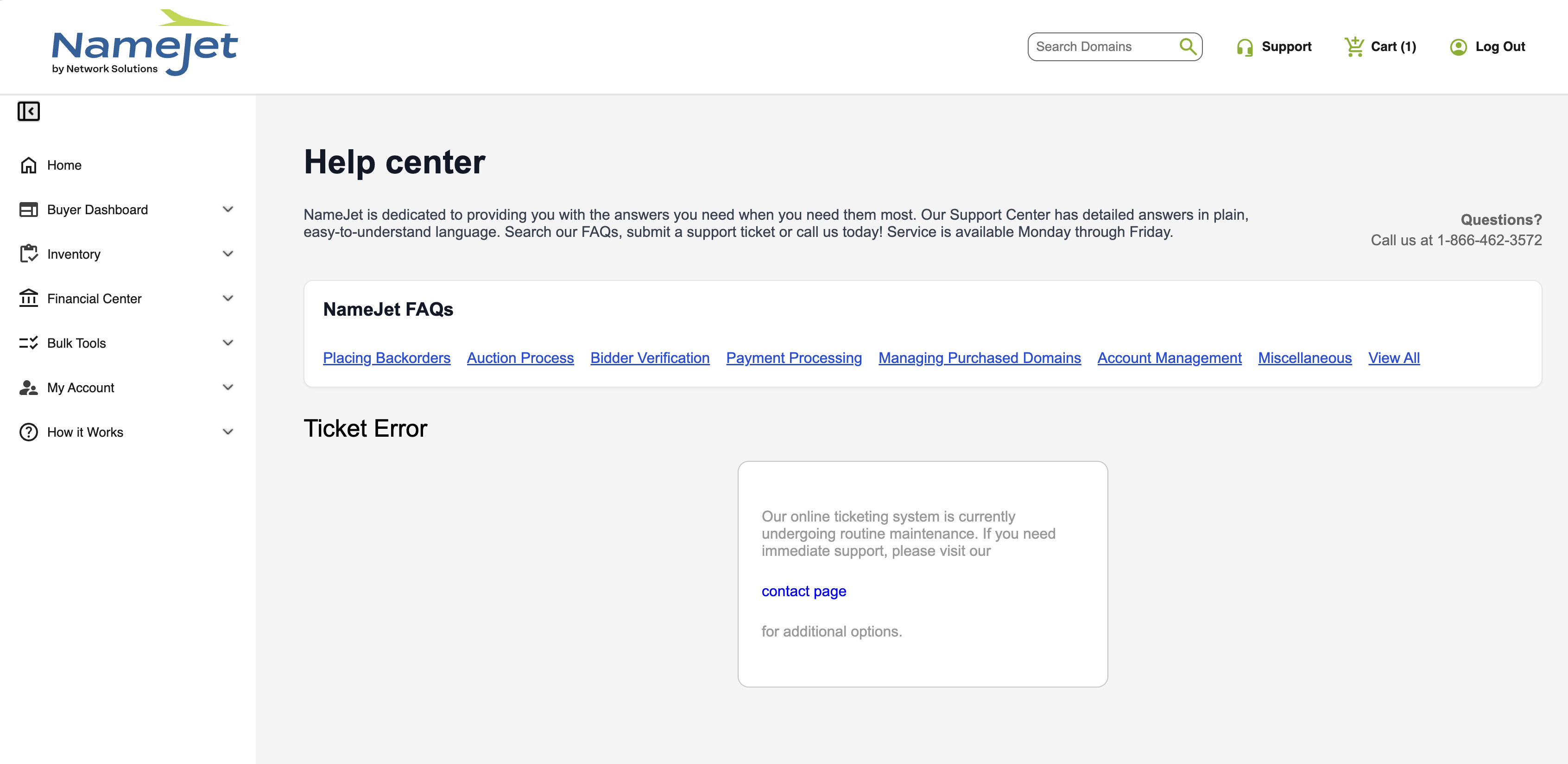
Help Center — browse FAQs, create support tickets, and track their status